
Data export
Retain has no single button that downloads everything in your account. You export one item at a time: a meeting's notes or transcript, a document, a notebook, or a notebook result. This page lists what each one gives you and where to find it. Nothing leaves Retain unless you choose it.
A meeting's notes and transcript
In the Mac app, open a meeting in Memories and use its Share menu, or right-click it in the list and choose Share. The menu has these items:
- Email. Opens a new message in your mail app with the title as the subject and the notes as the body.
- Copy as rich text. Copies the notes with their formatting, for Google Docs or an email.
- Copy as markdown. Copies the notes as Markdown, for GitHub or a wiki.
- Copy as plain text. Copies the transcript with a speaker label on each paragraph, or the notes if there is no transcript.
- Copy transcript. Copies the transcript with times, in WebVTT form.
- Other. Opens the macOS share sheet with the notes and a link to the meeting.
The original recording is not in this menu. If you used Local Whisper, the recording is saved on your Mac only. See Local transcription.
A document
In the Mac app, open the "..." menu on a document and choose Copy Content to copy its text, or Copy Link for a link to it. An email draft also has a Draft in Gmail button, which saves it to your Gmail Drafts and opens it there. Once it is saved, the button reads Open in Gmail and the document's menu has Update Gmail draft. Retain never sends it. Where your account has it, Sync drafts to Gmail in Settings, under Email, keeps your drafts up to date there on its own.
A notebook
Open the "..." menu on a notebook for two exports:
- Export .ipynb. Saves a Jupyter notebook with its latest outputs.
- Copy as Markdown. Copies the notebook's text, with its code and data in fenced blocks.
To save a result, open it in the grid and choose Export, then CSV or Parquet. The file has every row, not just the 200 the grid previews. See Charts, tables and .ipynb export.
In the web app
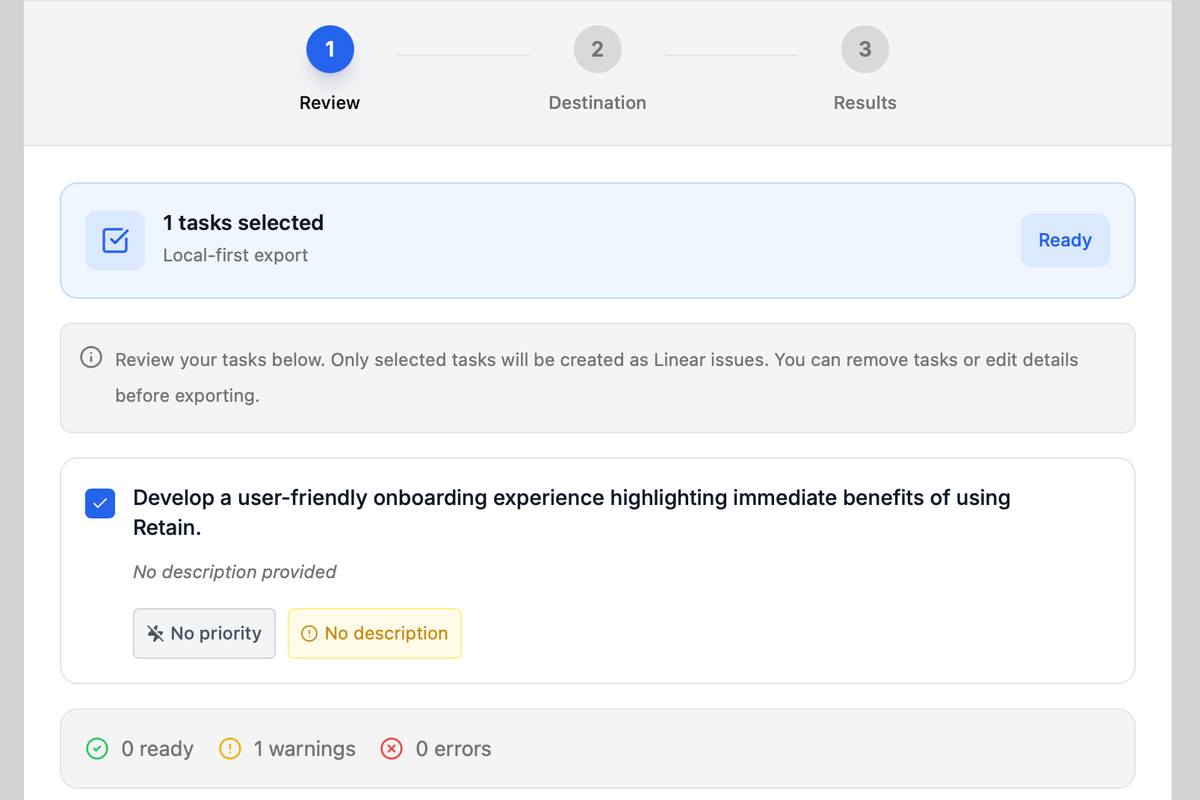
The web app at retainapp.ai has a similar set of choices. A draft's menu offers Copy (rich text), Copy as Markdown and Copy as plain text, and Export to Google Docs when Google Drive is connected. Retain asks Drive only for files it creates itself, so it cannot see your other files. A memory or task can be exported to Linear from its menu, after you connect Linear in Settings, under Email.
Let your agent read it
Your coding agent can read your meetings, Threads, documents and tasks and put them where you ask, such as a file in your repository. You ask in plain words. See What your agent can do with Retain.
Everything else
Everything above is manual: you choose the item and what happens to it. For a copy of your account's data as a whole, or for deletion, email support@retainapp.ai. To delete the account yourself, see Account. For where your data lives meanwhile, see Where audio, code and data go.
Need help?
Can't find what you're looking for? Contact our support team for a quick reply.