
Blog
August 1, 2025
3 min read  Ryan Rapp
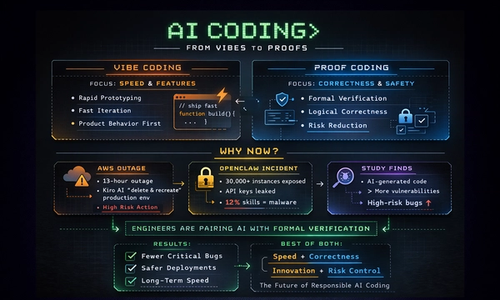
AI Coding: From Vibes to Proofs
Read more
Ryan RappA knowledge worker's guide to building a superproductive workflow
Ryan Rapp Ryan Rapp
 Ryan Rapp
 Ryan Rapp
 Ryan Rapp
 Ryan Rapp
A Product Requirements Document (PRD) says what to build and why, not how. Retain writes one from the interviews, planning meetings and email you have already captured, quotes the people who said it, and marks what the record does not support. This page covers how to ask for one, what it contains, and how to change it. Choose a PRD yourself
Work that ends in a repository does not tell the Thread it was for. A Thread is the running state of one matter, with what is owed on it. Closing the loop means linking that work to its Thread, letting Retain follow it, and recording the outcome once you confirm it is done. Retain never completes anything on its own. Link work to a Thread
The morning digest is a short page Retain makes each weekday about what moved on your Threads and what needs you. It lists only what has news, so you can tell in a minute what changed. Read it in the app, listen to it, or have your coding agent read it back after syncing your linked work. When it is made
A packet lists the pull requests that ship it, so you can see whether the code is in review, merged or abandoned. Retain collects them from the build, finds them by branch or commit, and lets you add the rest. The list is on the packet's Build tab, under Pull requests, on the Mac and on iPhone. See The Build tab. How a pull request gets linked
The Work list is one list of everything you have in flight: the build packets your agent is working through, the documents Retain is writing for you, and the work you linked to a Thread. Open it to see what needs you, what is running and what has gone quiet, then put finished work away. It is Work in the Mac sidebar and the Work tab on iPhone, with the same rows on both. What is on it
A design written only from meetings can describe code that is not there. Grounding fixes that: Retain asks Codex, running on your Mac, read-only questions about your checkout, and writes the design against the answers, with the files cited. This page covers what you need, how to connect a folder, what Codex can and cannot do, and what stays on your computer. What you need
When a technical discussion ends with "someone should write this up", Retain can write the design from what was said. You pick the direction, Retain reads the meetings and email behind it, and the result is a Technical Design Document you can revise and then build. This page covers where to start one, what Retain writes, and how to change it. Start from a meeting, a Thread or Create New
Notebook code runs on your own Mac, inside a small Linux virtual machine that Retain starts for each notebook. Nothing runs on a Retain server, and the code can see only what you give it. This page explains where code runs, what it can reach, what downloads the first time, and which Mac app can do it. Where code runs
A notebook draws charts and tables from the results of its code, and every chart says where its data came from. You can open any result in a grid, chart it, and save it, and you can move a whole notebook in and out of Jupyter. This page covers charts, tables, the result grid, and import and export. For the cells themselves, see Notebooks: cells, Run and outputs. How a chart is drawn
Every notebook on your Mac starts from one setup that you keep in Settings: the folders it can read, the Python packages it has, and the hosts it can reach. Then you bring in data in one of three ways. This page covers both. It applies to the Mac app on a Mac that can run notebooks (see The notebook sandbox). One setup for every notebook
A notebook is a Retain document for questions that need numbers. It is a stack of cells: text, data, code and charts, each with its own output. You run the code on your Mac, and every result keeps a record of the code and data behind it. What is in a notebook
Local transcription turns your speech into text on your own Mac, using the Whisper model, without sending the audio anywhere. It is an option in Retain for Mac. By default, Retain Cloud transcribes your recordings on Retain's servers. This page covers what stays on your Mac, how to turn it on, what it needs, and how it differs. What stays on your Mac, and what does not
When you have a list of build packets and no strong feeling about which to start, type /retain:next in your coding agent (in Codex, $retain-next). Retain picks the next packet for the repository you are in, you confirm the pick, and the agent builds it in a worktree of its own. You never need to remember a packet's name. It needs a checkout of the repository open in your agent. Outside one, it says so and stops.
A Thread is the running state of one matter, kept across your meetings and email: what is owed, by whom, and since when, with each claim tied back to the source it came from. Retain maintains Threads as new conversations arrive, so you read a short current state instead of searching old notes. This page covers what a Thread shows, how its status stays current, and how you mark something resolved. Where Threads sit
A meeting type tells Retain what kind of conversation you recorded, so the notes come out shaped for it. A stand-up gets a person-by-person status, a user interview keeps the interviewee's own words, and a general meeting leads with decisions. This page lists the types, what each one writes, and where you choose one. The types
Some changes have to land in order: a feature's second part needs code that its first part adds. A build packet can record the packets it builds on, so the order is kept in Retain instead of in someone's head, and your coding agent builds each one from the right starting point. This page covers how that works and how to set it. What a dependency is
The Build tab is the last tab of a build packet, after Proposal, Design, Requirements and Tasks. It is where you start a build in your coding agent and then follow it: who is building, on which branch, which pull requests exist, and what was built. This page walks through the tab in each state, on the Mac and on iPhone. The tab appears once the packet is Ready to build, and stays through Planned, Building, Built and Archived. It is not shown while Retain is still writing the design, or for a dropped packet.
When a meeting ends with "can someone pull the numbers", Retain can answer with a notebook: Python, your data and charts, running on your own Mac. This page walks through a week of that, and says plainly what notebooks are and are not for. Record the meetings that need numbers
For an engineering manager, Retain records your 1:1s and standups with what each person committed to, and then shows what is in flight, what waits on what, and what shipped. This page walks through a week of that. Record the 1:1s and the standup
Once your assistant is connected, it can do two kinds of things with Retain: run the slash commands you type, and read and write your Retain on your behalf while you work. This page lists both. If you have not connected yet, start with Connect Claude Code or Codex. The slash commands you type
When a change starts in your coding agent instead of a meeting, you take it through three steps: explore it, design it, then apply it. Each is a slash command you type in Claude Code (in Codex, the same names with a dollar sign, such as /retain-apply). Together they turn a half-formed idea into a build packet: a change to your code, kept in Retain, from the reason for it to the pull request that ships it. All three need a checkout of the repository open in your agent, and the agent needs Retain connected (see Connect Claude Code or Codex). A chat that only has the Retain connector, such as claude.ai, can't run them: it says so and stops.
For a product manager, Retain turns user interviews and planning meetings into product requirements documents, keeps track of what each person owes, and shows what engineering is building from each decision. This page walks through a week of that. Record the conversations that shape the product
Connecting your coding agent is part of setting up Retain, not an add-on. Retain is where your agent finds what was said and decided in your meetings, and where it reports the builds it does for you. This page shows how to connect Claude Code, Codex, and the Claude and ChatGPT apps, and what you can ask once you have. Why connect your agent
For an engineer, Retain turns a design discussion into a design doc grounded in your code, and the doc into a build packet that your coding agent builds. This page walks through a week of that, and points to the articles for each step. Record the design discussion
A build packet is one change to your code, from the reason for it to the pull request that ships it. Retain keeps the packet; your coding agent builds it. This page explains what is in a packet and how it moves from a design to shipped work. What is in a packet
Retain has no single button that downloads everything in your account. You export one item at a time: a meeting's notes or transcript, a document, a notebook, or a notebook result. This page lists what each one gives you and where to find it. Nothing leaves Retain unless you choose it. A meeting's notes and transcript
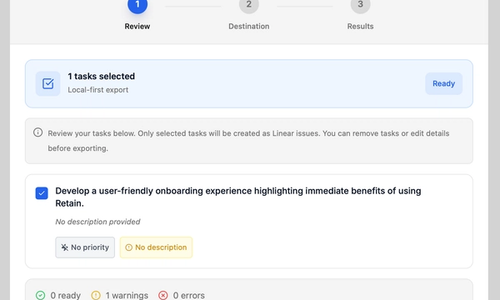
Retain can create Linear issues from your tasks. It is a one-way send that you start yourself: nothing is sent unless you pick it, and nothing syncs back. You connect Linear in the Mac app, and you send tasks from Retain's web and desktop apps. Where it lives
The keyboard shortcuts in Retain for Mac, grouped by where you use them. Shortcuts use Command (⌘), Control (⌃), Option (⌥) and Shift (⇧). The menus show the same shortcuts beside each command. The notebook has its own group at the end. Move around
The problems people hit most often with Retain, each with its cause and the fix. They cover recording, packets, pull requests, notebooks and your coding agent. Find the heading that matches what you see. No sound in a recording
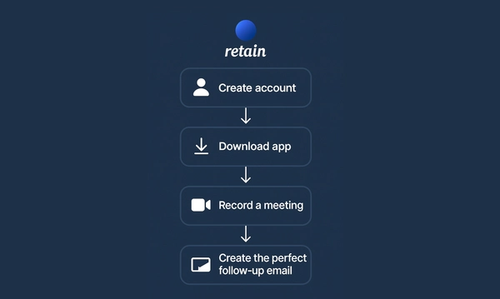
Retain has a Mac app and an iPhone app. This page covers installing the Mac app and the iPhone app, signing in, the permissions Retain asks for, and how each one updates. When the app is installed, connect your coding agent. Install on the Mac
This page says what Retain sends to its servers and what stays on your computer, for audio, transcripts, email and calendar, your code, notebooks, and what your coding agent can read. It describes what the apps and the server do today. It is not the legal policy: Retain's privacy policy on the website is that. Audio
Retain is billed through the website, with Stripe, not through the Mac app or the iPhone app, and not as an in-app purchase on the App Store. The apps have no billing screen and no purchase button. This page covers the plans the website describes, how to subscribe, and where you manage or cancel a subscription. It lists no prices: the website shows them. The plans
This walk-through takes one meeting all the way to a pull request: record it, read the notes, turn the discussion into a design written against your code, build it in your coding agent, and follow it to done. Each step links to the page that goes deeper. Before you start
Short answers to the questions people ask first about Retain: who it is for, what it needs, which app to use and where your data goes. Each answer points to the article that covers it in full. Who is Retain for?
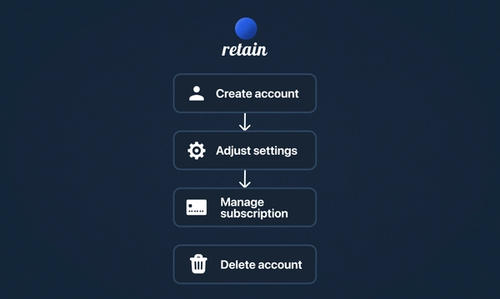
Your Retain account is where your meetings, Threads and documents live, and it can be signed in on several devices at once. This page covers signing in and out, switching between accounts on a Mac, connecting Google for email and calendar, and deleting the account. The steps below are for the Mac app, with the browser app and iPhone noted where they differ. In the Mac app, Settings lists your account's sections first and the Mac's own, Updates and About, after them. Sign in
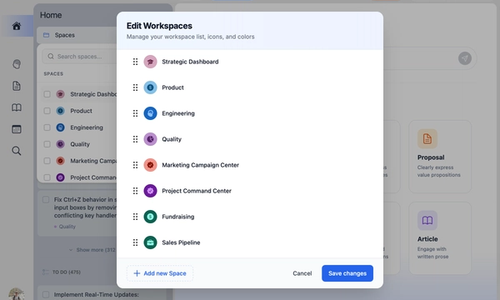
Workspaces Workspaces help you organize your meetings, calendar events, emails, and documents into separate project spaces. Instead of sifting through everything at once, you can focus on what's relevant to a specific area of your work.
Retain is a meeting notetaker for technical work. It records and transcribes your meetings like any notetaker, then goes further: it turns what was decided into design docs and notebooks, hands them to your coding agent to build, and keeps track of everything until it ships. Who it is for

Retain records a meeting on your Mac or iPhone, shows the transcript as you go, and writes the notes when you finish. Each recording becomes a memory: the notes, the transcript and the audio, kept together. This page covers starting and stopping, what you see while recording, and what you have afterwards. Start a recording

Retain makes it easy to write professional, high-impact emails by collaborating with a team of AI expert agents. Here’s how you can use Retain’s AI team features and enhancement tools to improve your email workflow: 1. Select an Expert Agent
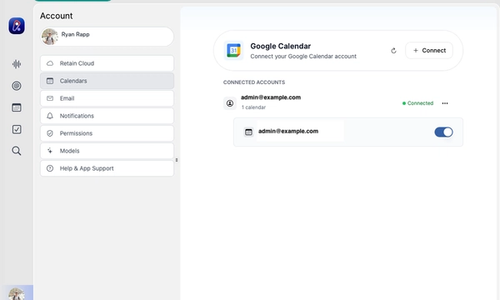
Retain reads your Google calendars to know which meeting a recording belongs to. That gives the notes their real time and invitees, and gives your Threads a date and a next meeting. It never writes to your calendar. Connect calendars
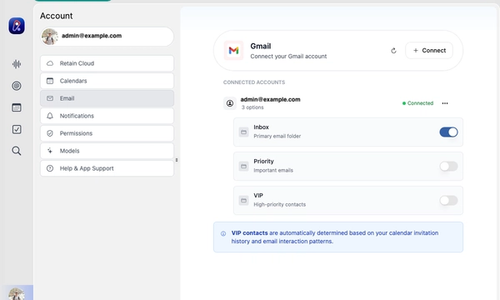
Retain reads your Gmail so that a Thread can follow a matter across meetings and email, and so your agent can find the message behind a commitment. It can also write a reply and put it in your Gmail Drafts. It never sends anything. This page covers connecting, what Retain does with your mail, and where it stops. Connect Gmail