
Install the app
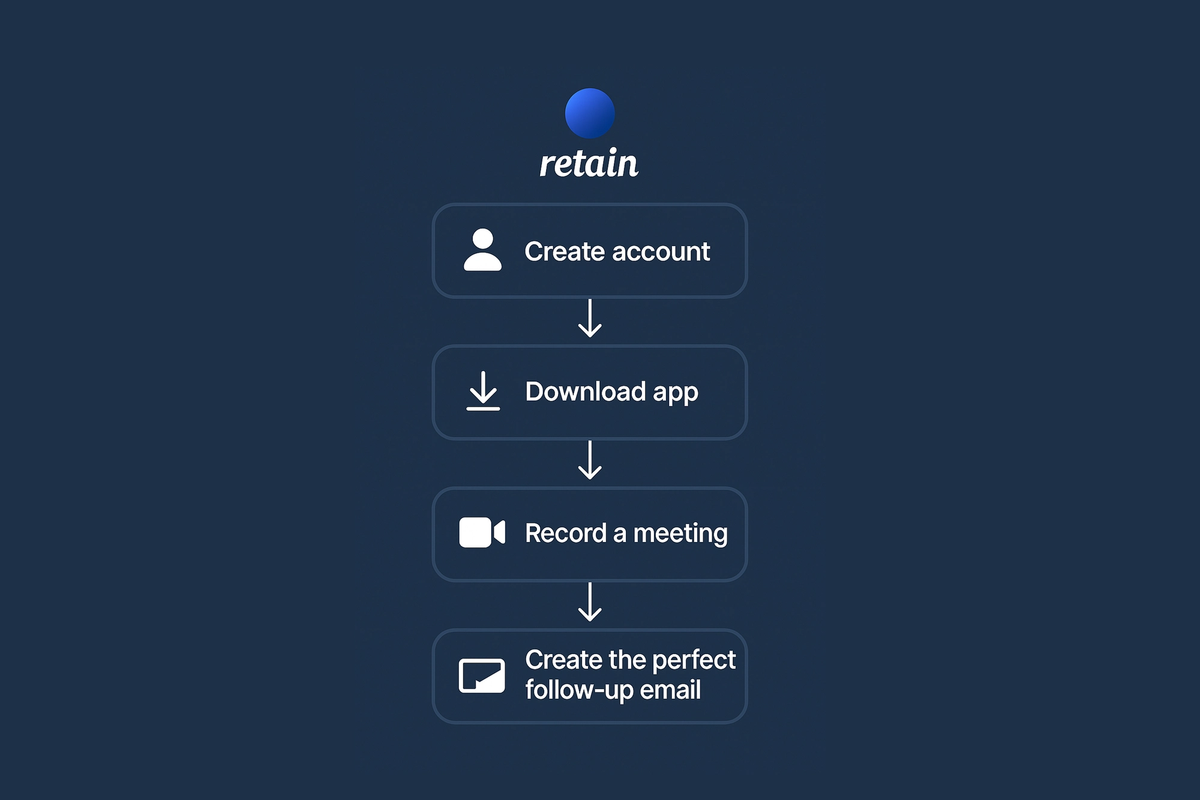
Retain has a Mac app and an iPhone app. This page covers installing the Mac app and the iPhone app, signing in, the permissions Retain asks for, and how each one updates. When the app is installed, connect your coding agent.
Install on the Mac
Download the Mac app from retainapp.ai/download. It needs a Mac with Apple silicon and macOS 26 or later.
Install on iPhone
Install Retain from the App Store on an iPhone with iOS 18 or later. The iPhone records, shows your memories and Work list, and reads packets, including the Build tab with the command to copy. It has no system audio capture, no local transcription and does not run notebook code.
Sign in
Open the app and choose Continue with Current Account. Retain opens a browser page to sign in, then returns to the app. If you signed in before, the button reads "Sign back in as" and your first name, and Use Another Account switches. On the Mac you can add more accounts in Settings under Profile.
Allow what recording needs
- Microphone. Asked the first time you record. It records your voice.
- System audio (Mac). Asked the first time you record. It records the other people on a call, so both sides are transcribed. It never records your screen. If macOS refuses it, the recording is silent on that side, and Retain shows "No system audio yet" with Open System Settings. Allow Retain under System Audio Recording Only, then start a new recording.
- Calendar. Retain asks for write-only access when you add a suggested event to your calendar. It can add events and cannot read yours. To link recordings to your meetings, connect Google Calendar in Settings under Calendars instead.
Update the app
- The iPhone updates through the App Store.
- The Mac app checks for updates itself. Choose Check for Updates… in the app menu, or open Settings and choose Updates, which shows your version and has switches for automatic checks and background downloads. A downloaded update installs the next time you quit Retain, and never interrupts a recording.
Next step
Connect Claude Code or Codex, so your agent can read your meetings and report what it builds. Then record your first meeting: From your first meeting to your first shipped change walks through it.
Need help?
Can't find what you're looking for? Contact our support team for a quick reply.