
Linear export
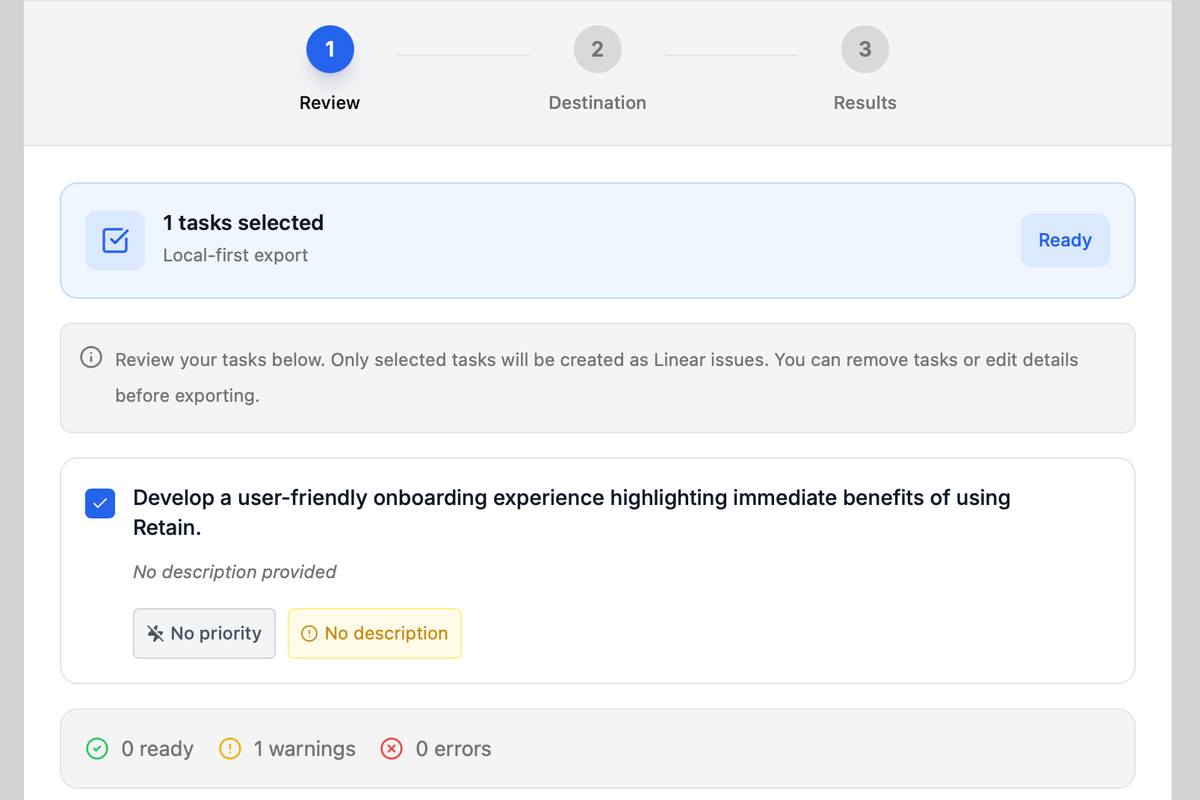
Retain can create Linear issues from your tasks. It is a one-way send that you start yourself: nothing is sent unless you pick it, and nothing syncs back. You connect Linear in the Mac app, and you send tasks from Retain's web and desktop apps.
Where it lives
- Connect: in the Mac app, open Settings, choose Email, and find Linear under Connected apps. Select Connect and finish authorizing in your browser. The row shows Connected once Retain sees it.
- Send: in the web app and the desktop app. The iPhone and Mac apps do not send tasks to Linear.
The connection belongs to your Retain account, so a Linear account connected in the Mac app is the one the web and desktop apps use.
Send tasks
With Linear connected, open the context menu on a task or a memory in the web or desktop app and choose Export to Linear.
- Export task sends the one task you opened the menu on.
- Export all tasks from memory sends every task that came from that memory.
A dialog then walks through three steps: Review, Destination and Results.
- Review. Lists the tasks and whether each is ready. A task with no title is an error. A task with no task plan can still be sent.
- Destination. Choose the team, which is required. Issues are created in that team's backlog. Optionally choose a workflow state other than the default, add the task's workspace name as a label, and pick other labels.
- Results. Shows what was created or skipped for each task, with a link to the issue.
The dialog has no project picker.
What an issue contains
- Title is the task's name.
- Description is the task's own description, then its task plan when it has one (context, why it matters, cost of inaction, suggested next steps), then a link back to the task in Retain.
- Priority maps Urgent, High, Medium and Low to Linear's 1 to 4. A task with no priority is sent with none.
Sending the same task twice
Retain looks for an issue whose description already carries the task's Retain link. If it finds one, it does not create a second issue; it returns the existing one and adds any labels you chose. Leave the Retain link in the description. If you remove it, the next export makes a new issue.
What it does not do
- It does not update an existing issue's title, description or status.
- It does not bring Linear issues into Retain.
- It does not send anything in the background.
If an export says Linear authentication failed, connect Linear again from the Mac app's Settings.
Need help?
Can't find what you're looking for? Contact our support team for a quick reply.