
Account
Your Retain account is where your meetings, Threads and documents live, and it can be signed in on several devices at once. This page covers signing in and out, switching between accounts on a Mac, connecting Google for email and calendar, and deleting the account. The steps below are for the Mac app, with the browser app and iPhone noted where they differ. In the Mac app, Settings lists your account's sections first and the Mac's own, Updates and About, after them.
Sign in
Retain opens your browser to sign you in, so you never type a password into the app. The website's sign-in page offers Apple, Google and Microsoft, or an email address and password. After you sign in, the app takes over again.
On the Mac's sign-in screen, the first button reads Sign back in as your first name when the app remembers you, and Continue with Current Account otherwise. Use Another Account asks the browser to let you choose a different one. Forget This Account clears what the app remembers about you.
Several accounts on one Mac
Open Settings, then Profile. The Accounts list shows each signed-in account with a check mark on the active one.
- Switch. Click another account in the list. Switching waits while a recording or a codebase investigation is running, and the page says why.
- Add an account. Choose Add Account and sign in with the browser. In the Mac app, Retain also signs the small command line tool your coding agent uses in to the new account. A row that says Sign in the command line tool means it is not signed in as that account, so packets cannot be pushed as it.
- Sign out of one. Choose Edit, then the red minus beside the account. Its data on this Mac is removed, and your other accounts stay signed in.
- Sign out of all. Under Edit, choose Sign Out All Accounts.
An account that says Sign in again needs you to sign in once more. In the browser app, Profile shows the account you are signed in as, with Sign out below it.
Connect Google for email and calendar
Connecting is done in the browser. The app waits for it to finish and shows the account when it appears.
- Email. In Settings, choose Email. Under Connected apps, choose Connect next to Google, which covers Gmail, Calendar and Drive, or next to Linear. It reads Connected afterwards. Sync drafts to Gmail and Inbox depth, how far back Retain imports your email, are on the same page.
- Calendars. Choose Calendars, then Connect next to Google Calendar. Each connected Google account lists its calendars, and you switch on the ones Retain should read. Link recordings to calendar events matches each recording to its meeting.
- Disconnect. In Calendars, open the "..." menu beside an account and choose Disconnect. Retain stops reading that account's calendars. If the account also connects Gmail, its email stops too.
For what Retain asks Google for and keeps, see Where audio, code and data go.
Delete your account
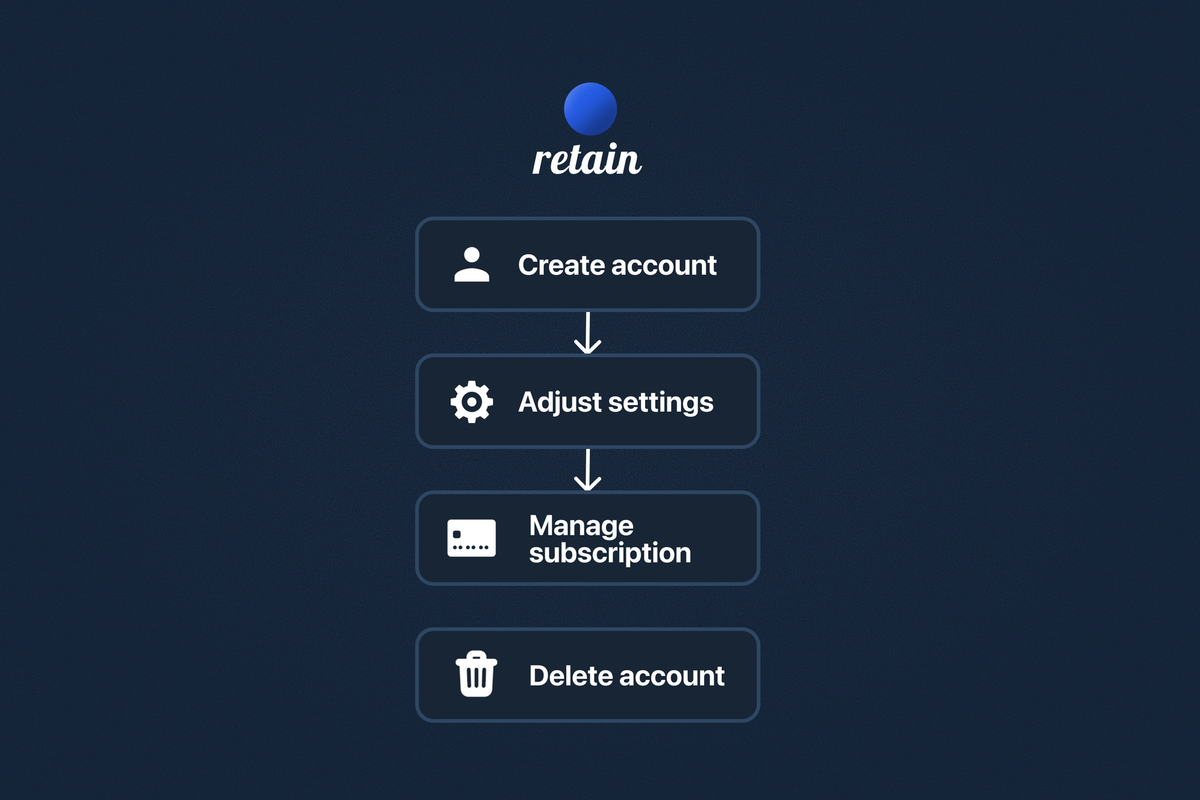
In Settings, open Profile and choose Delete Account at the bottom. The Mac app asks twice. The first message says this will permanently delete all your data, including conversations, tasks, memories and settings. The second, Are You Sure?, says it cannot be undone. The browser app asks the same way. On iPhone, Delete Account is at the bottom of Settings.
Deletion signs you out of every session. If you pay for Retain, cancel first: the deletion does not cancel a subscription. See Billing. To keep something, export it before you delete. See Data export.
Need help?
Can't find what you're looking for? Contact our support team for a quick reply.